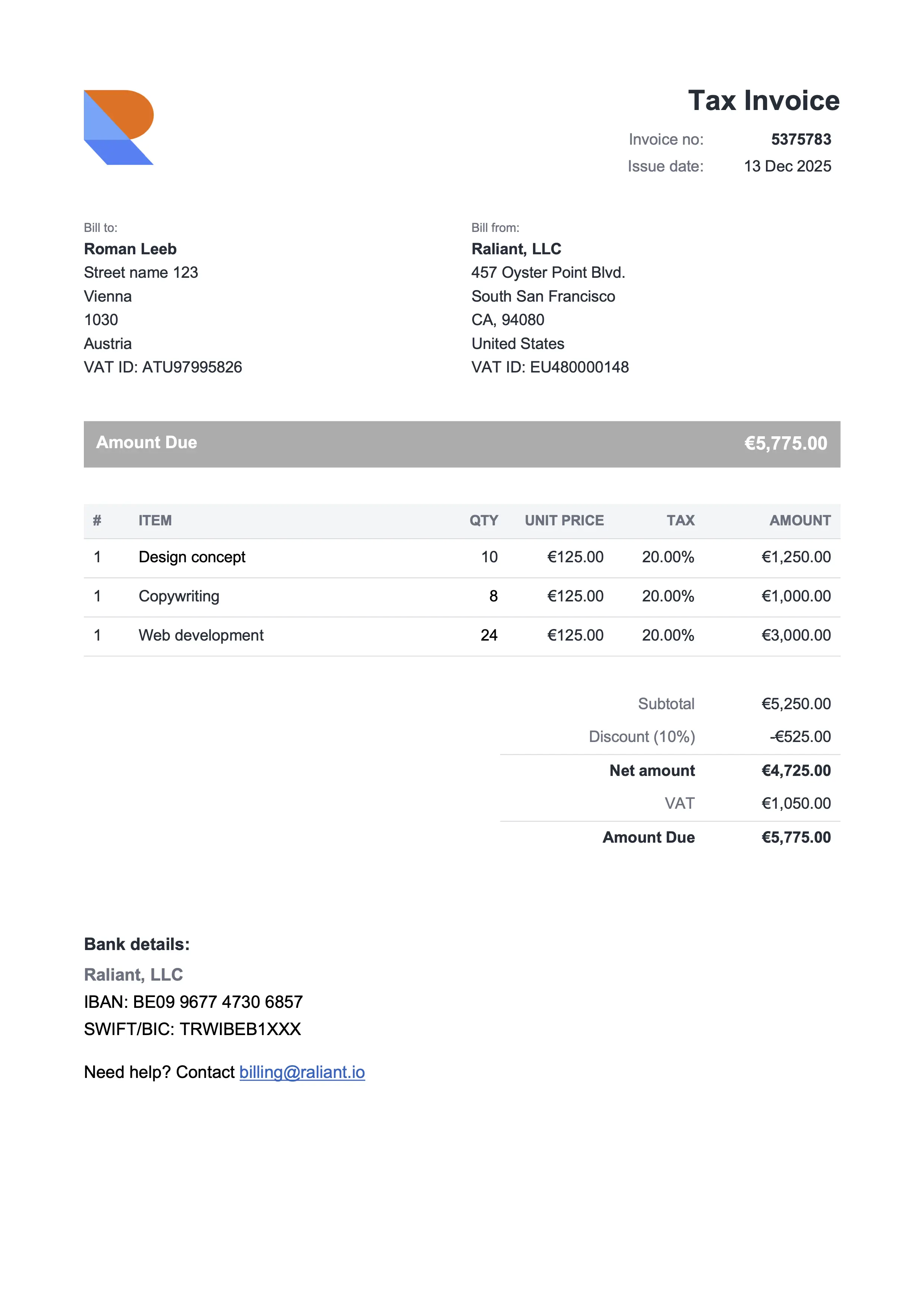
Compact Gray
Best for consultants & professional services
Free Microsoft Word invoice templates as a .docx download. Open one in Word, add your logo, fill in the lines, and send the PDF. If you'd rather have subtotals and tax calculate themselves, switch to the Excel version. No signup.
Best for consultants & professional services
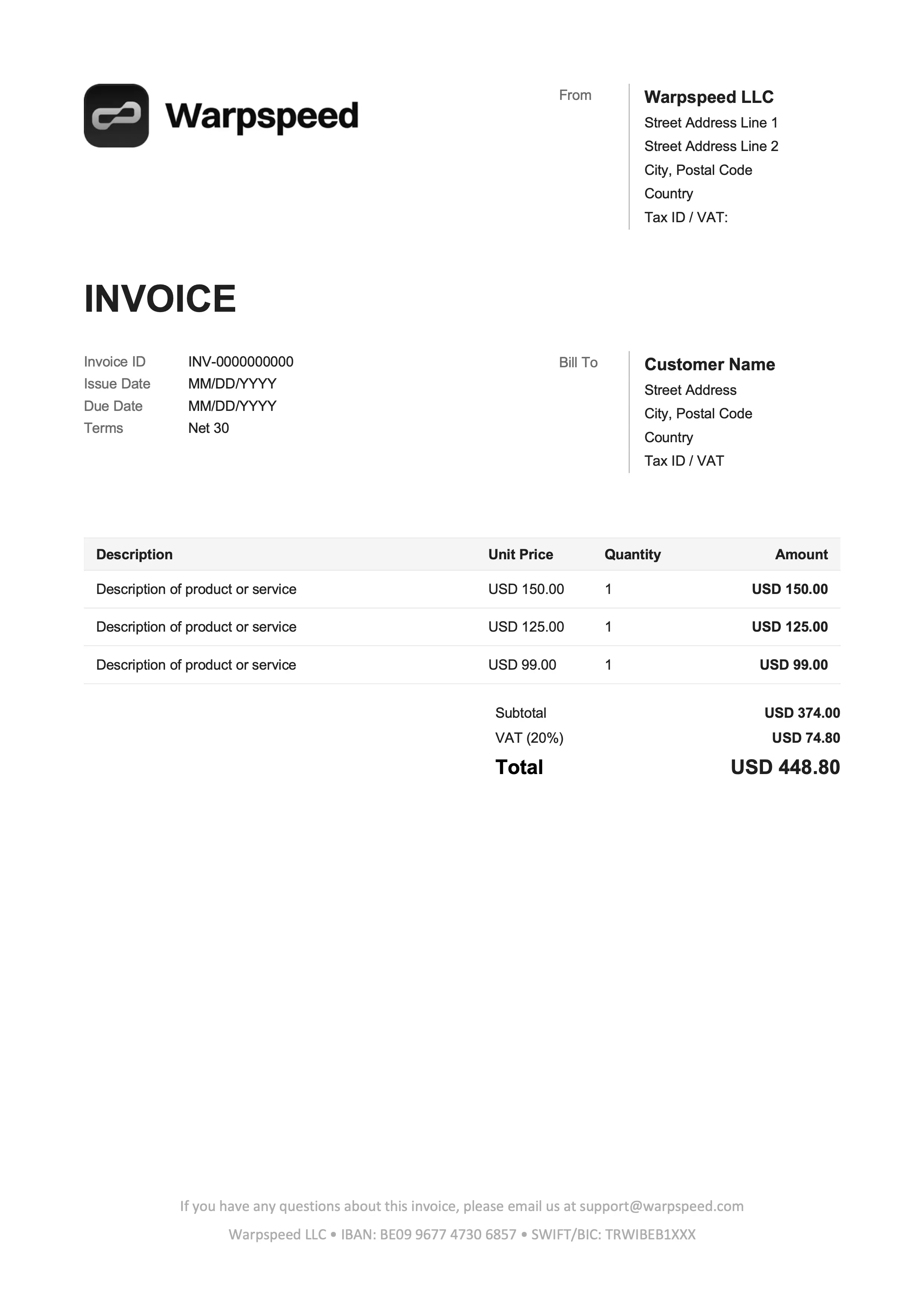
Best for freelancers & online services
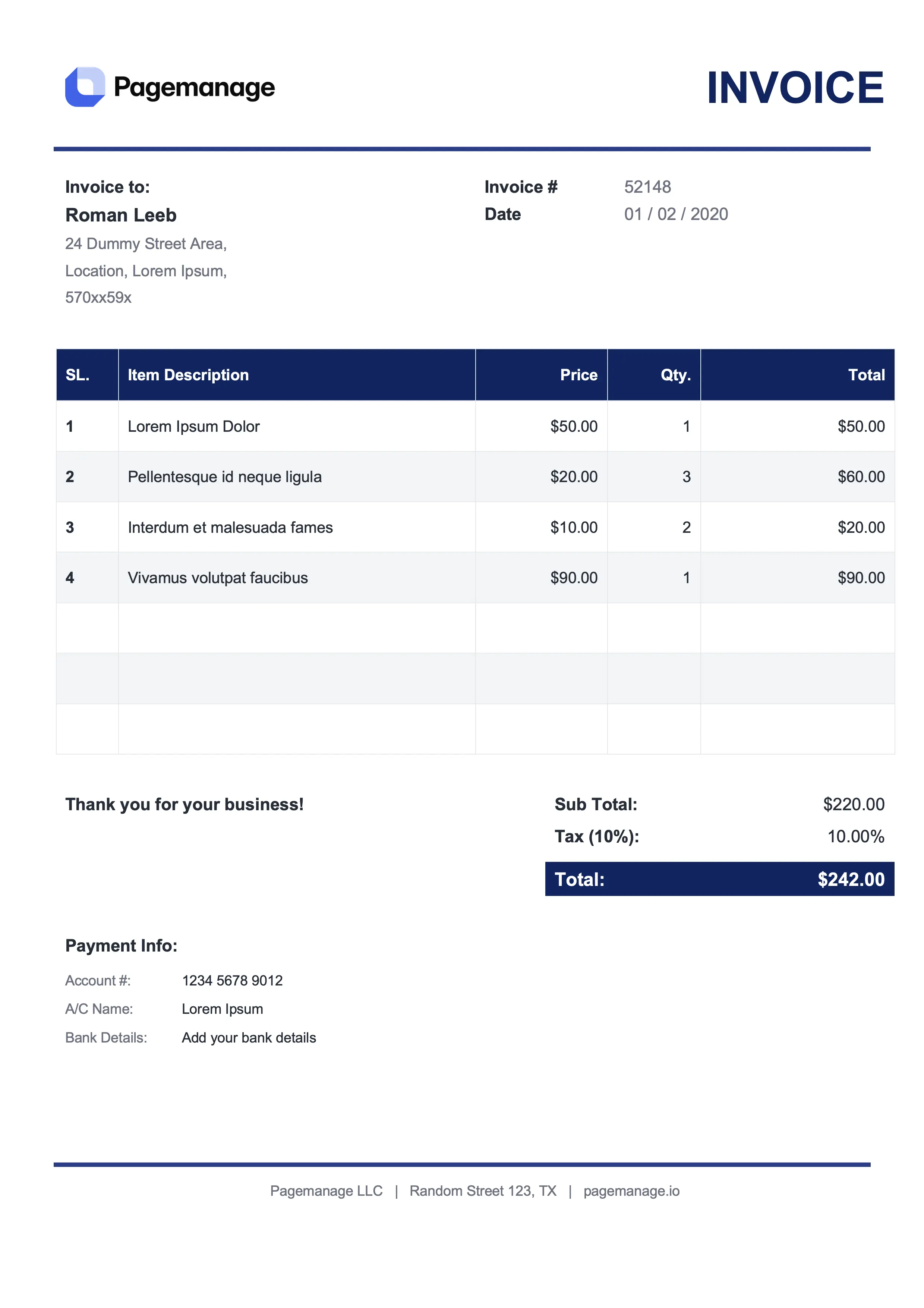
Best for lawyers & advisors
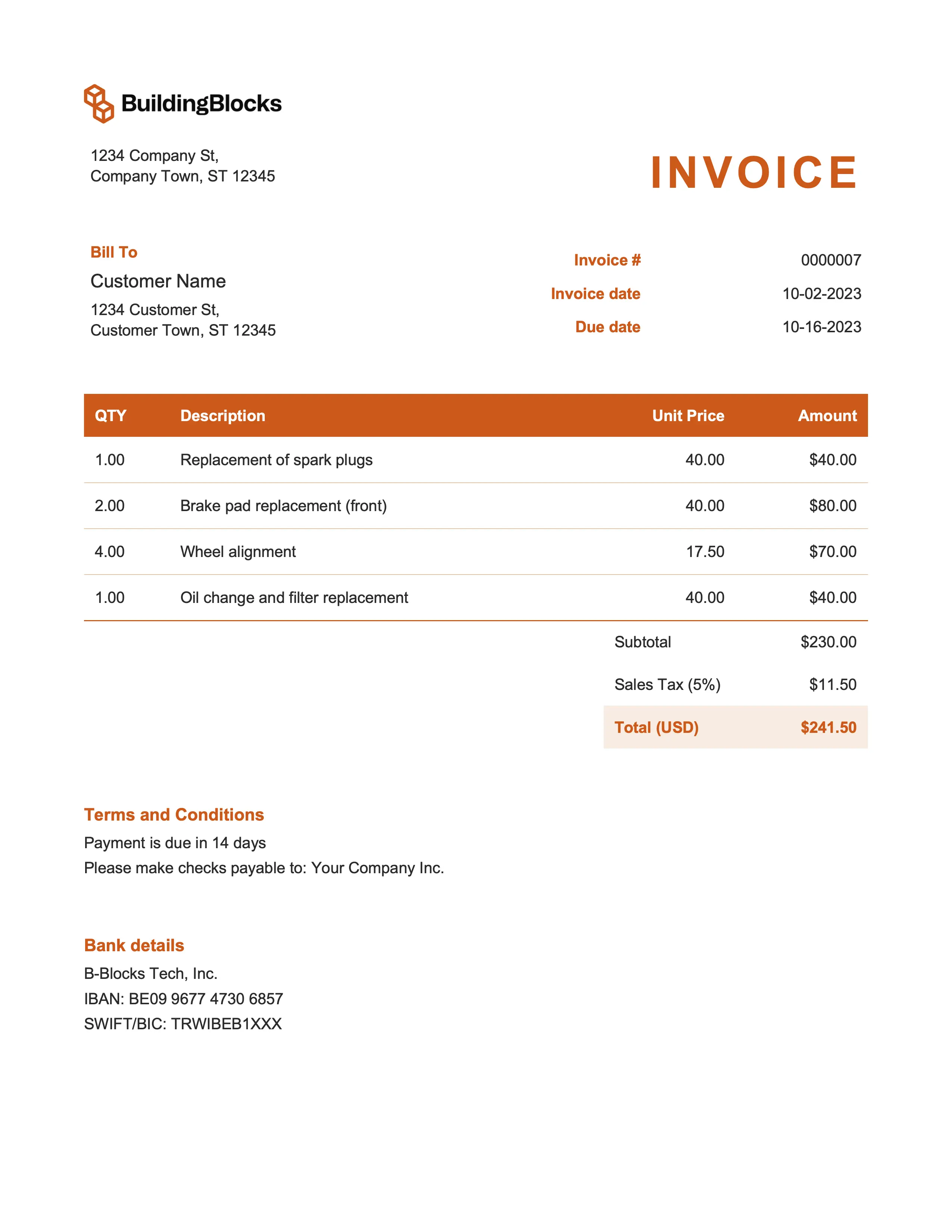
Best for marketing & event management
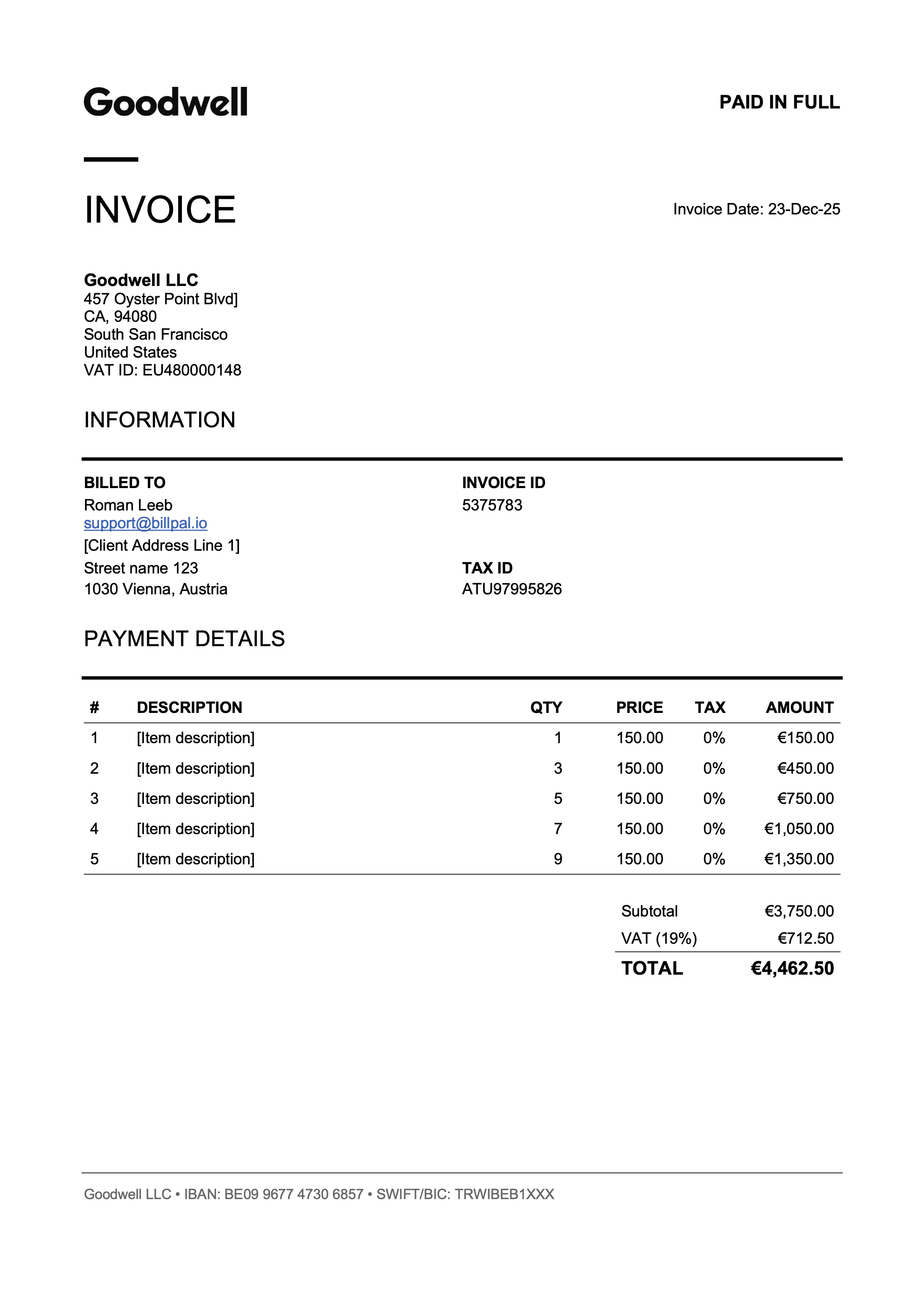
Best for designers & art directors
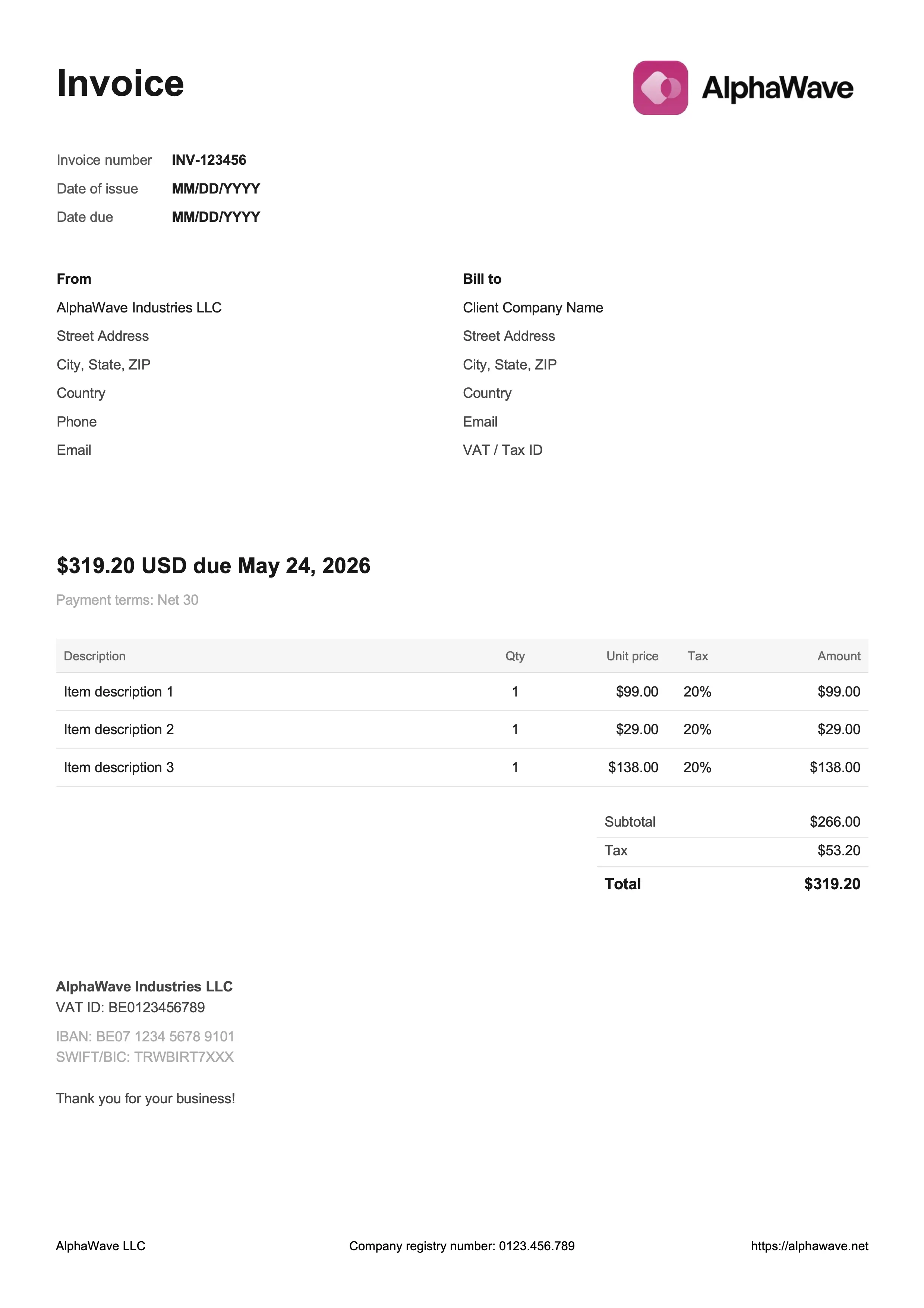
Best for digital products & creative work
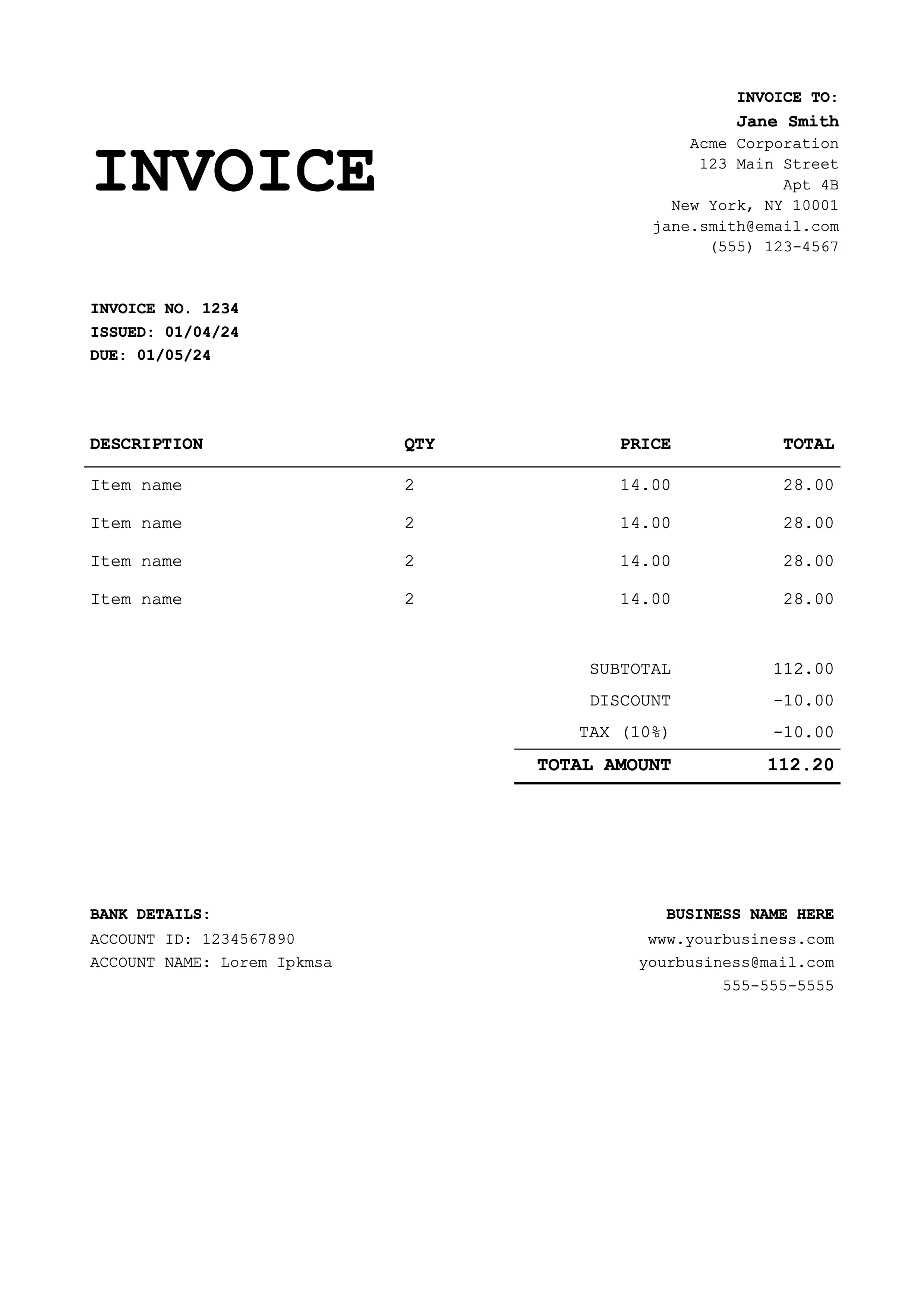
Best for coaches & educators
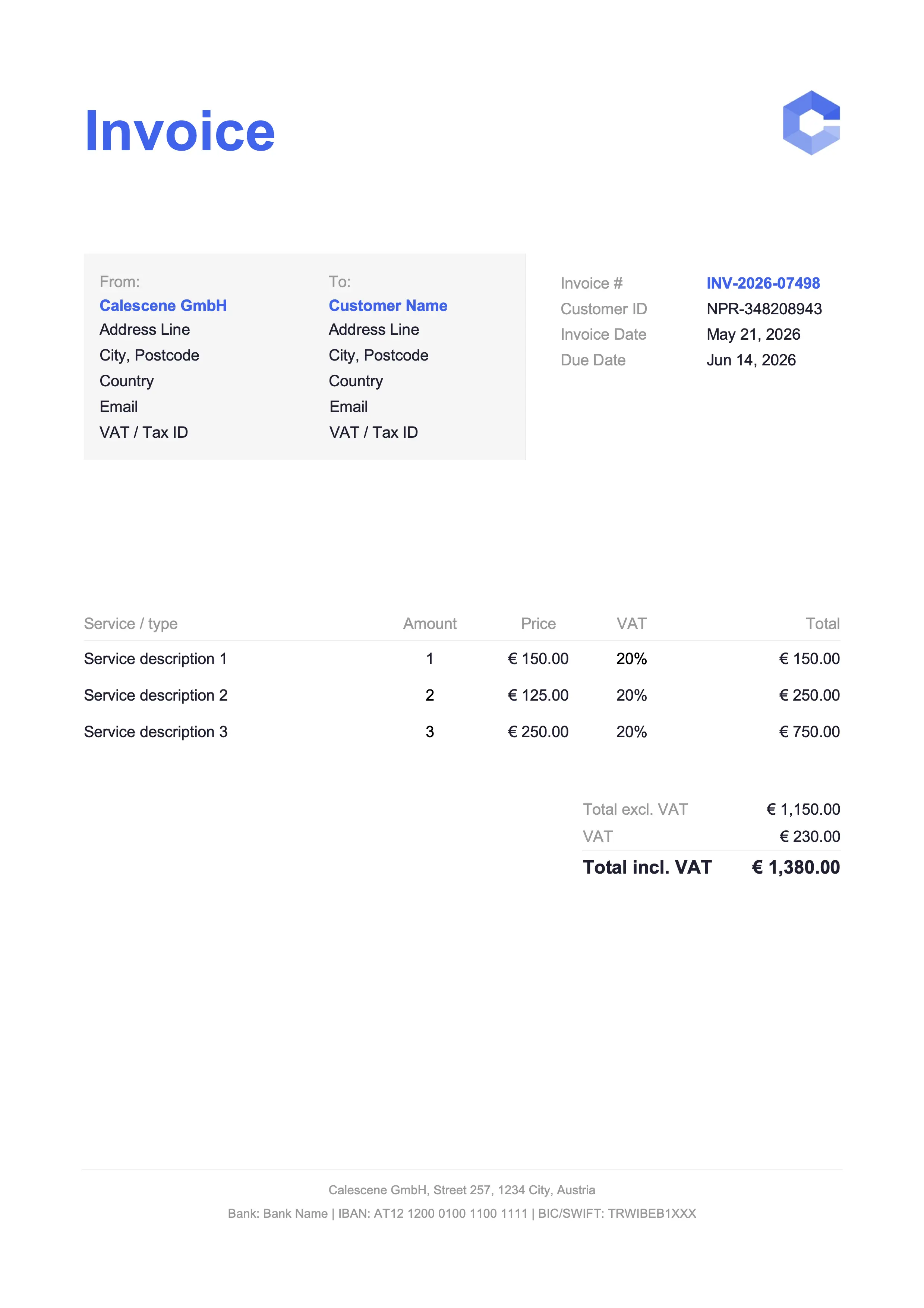
Best for tradespeople & service jobs
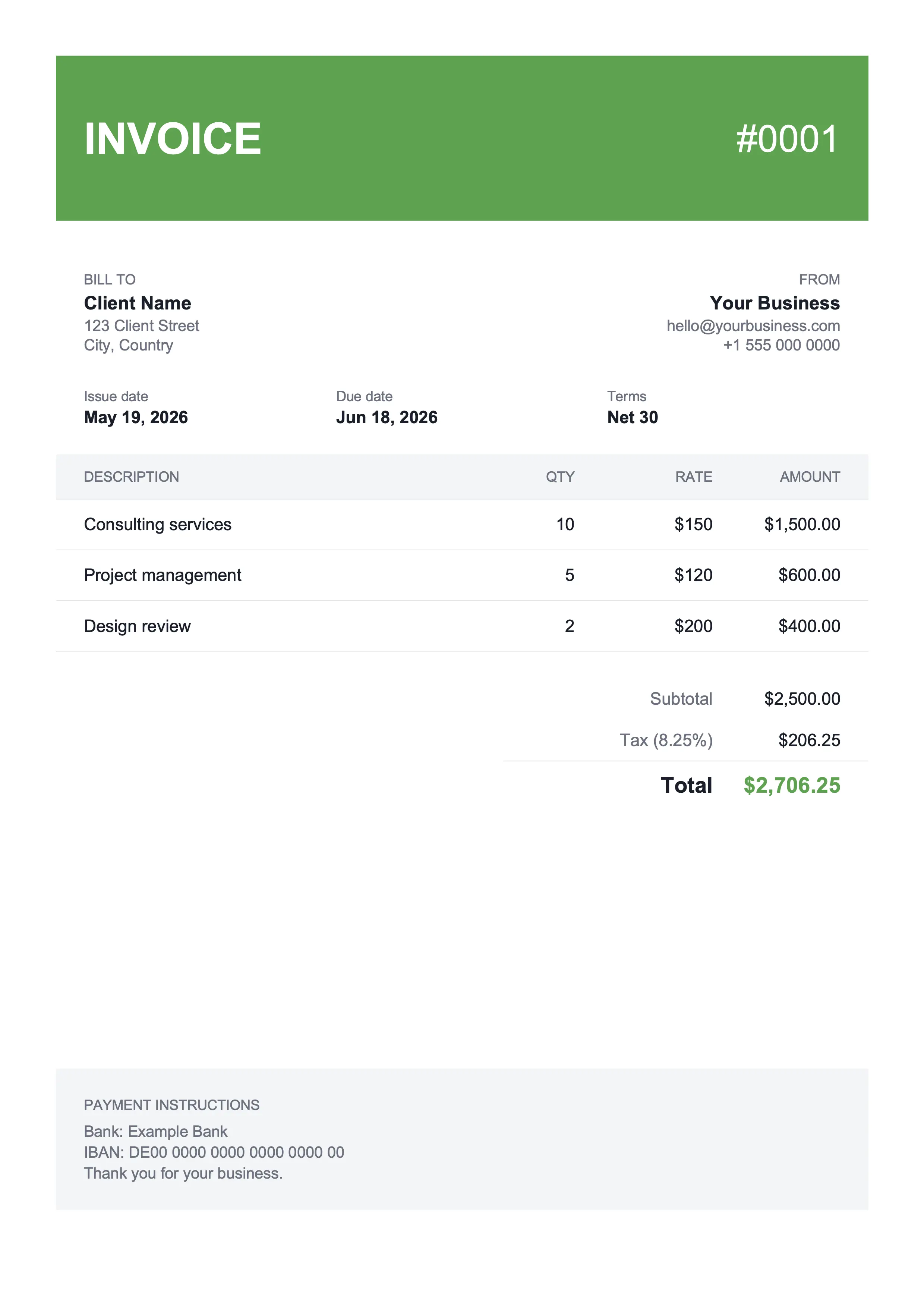
Best for shop owners & landscaping
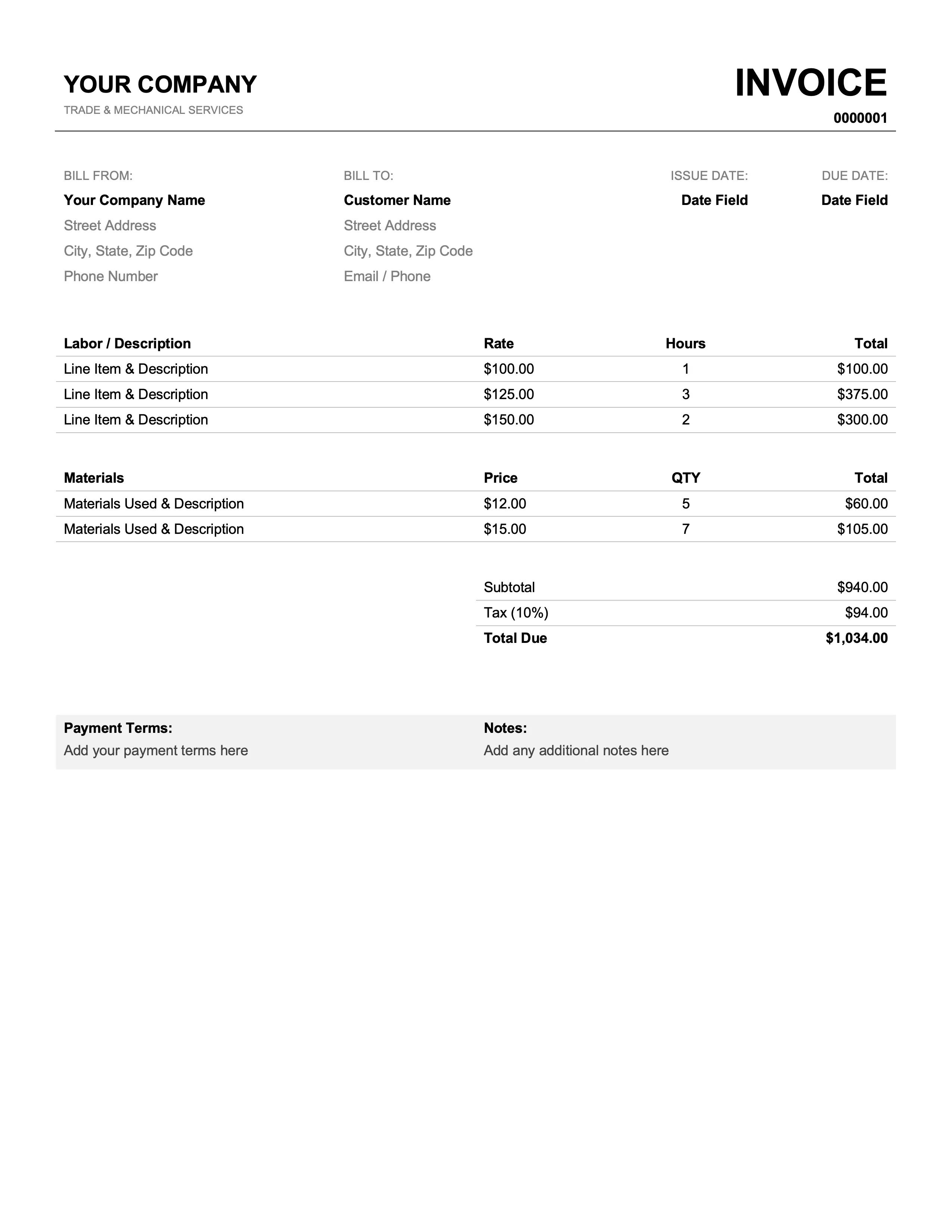
Best for mechanics & plumbers
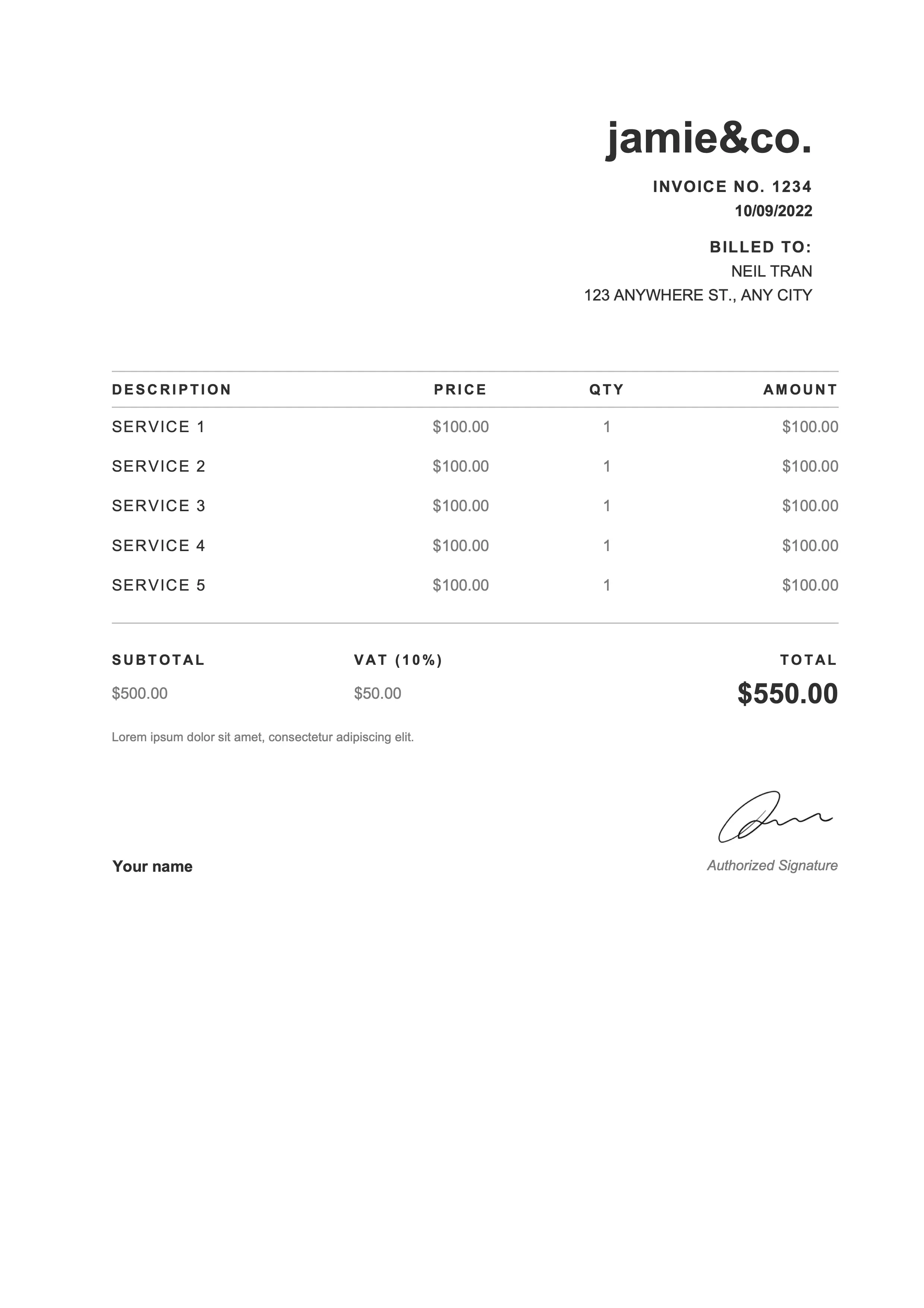
Best for photographers & web designers
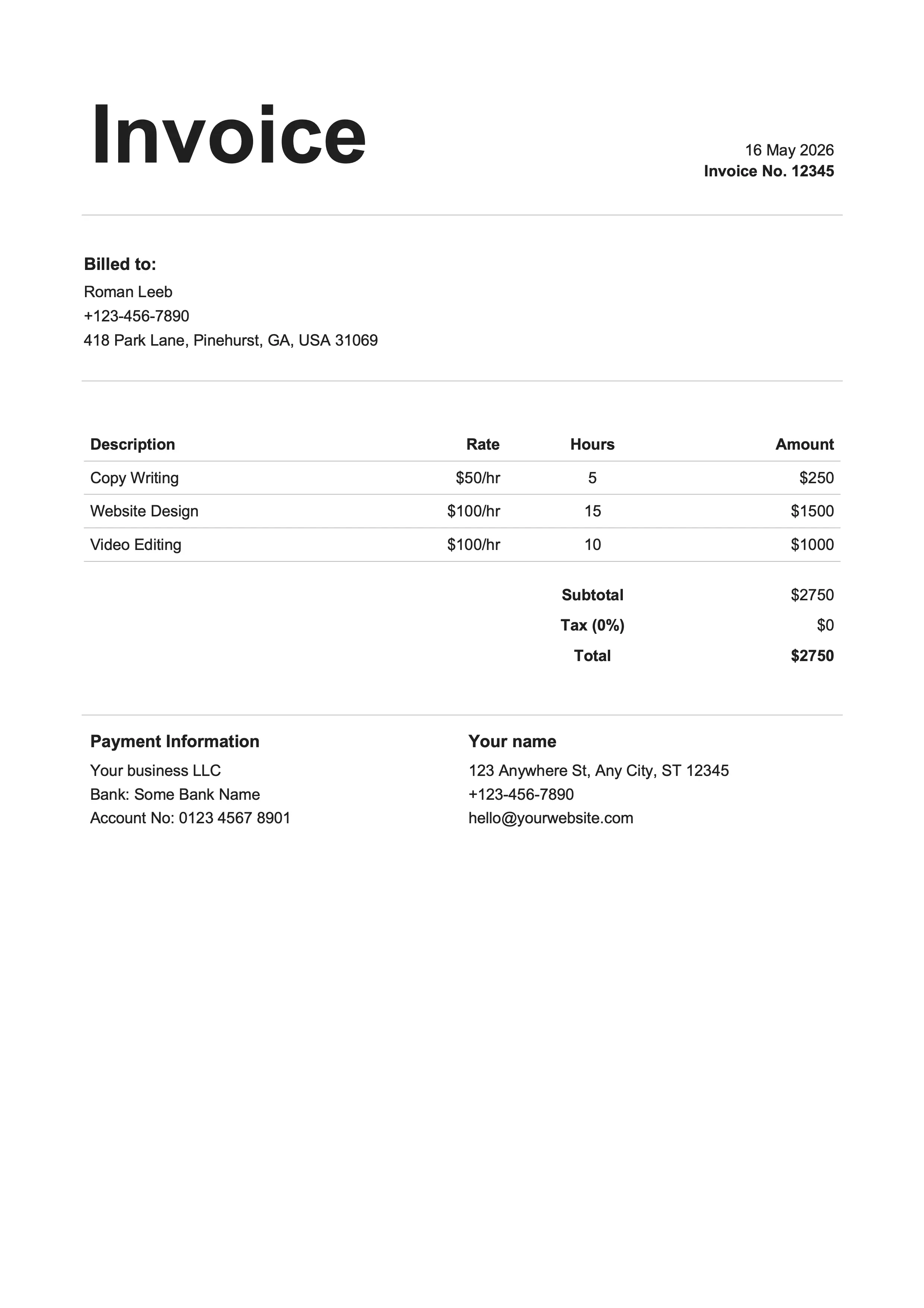
Best for writers & influencers
Same designs, different format. Pick whichever fits your workflow.
Microsoft Word is the most familiar way to build an invoice if you already have Office. Every invoice Word template here is a real .docx file with editable tables, clean typography, and a dedicated logo slot. No locked PDFs, no flat images pretending to be a form. Works in MS Word for Mac and Windows, Microsoft 365, and free alternatives like LibreOffice.
No signup, no email, no upsell. Click the button and the .docx file lands in your Downloads folder.
Not a flat image, not a locked PDF. Add or remove rows in the line-items table without breaking the layout.
Prints on A4 and US Letter without resizing, scaling, or cutting off the totals row.
Insert → Pictures → This Device, pick your logo file, and it lands in the header slot at the right size.
One menu item: File → Save As → PDF on Windows, File → Export → Create PDF on Mac. Single-file invoice, ready to email.
Business name, address, email, and phone for both parties.
Sequential number plus dates (default Net 15 or Net 30 terms).
Description, quantity, unit price, and amount per item.
Auto-calculated in the Excel and Google Sheets versions; manual in Word and Docs.
Bank details, accepted payment methods, and late-fee policy.
PO number, project name, and any custom terms or thank-you note.
Click Download Word on any template card above. The .docx file lands in your Downloads folder. Open it in Microsoft Word or any compatible editor (LibreOffice, Apple Pages, Google Docs all read .docx).
Replace the placeholder business name, address, and contact details at the top of the document. Use Insert → Pictures to drop in your logo where the placeholder sits. The logo slot is sized to fit a standard mark without breaking the header.
Fill in the client's name, billing address, invoice number, and dates. In the line-items table, type the description, quantity, and unit price for each row. Word's table formulas are clunky, so you'll multiply line totals manually, or grab the Excel version of the same template for automatic math.
Write the subtotal, apply any tax or discount, and total it up. Add Net 15 or Net 30 terms and your preferred payment method: bank transfer, Stripe link, ACH, whatever you accept.
On Windows: File → Save As, then choose PDF from the file-type dropdown. On Mac: File → Export → Create PDF. Email the PDF to your client. Keep the .docx in your folder if you'll need to edit later.
Word and Google Docs do the same job: a clean, editable, document-style invoice. The real difference is where the file lives and how you work with it.
| Feature | Word | Docs |
|---|---|---|
| Where it lives | Local .docx file on your device | In your Google Drive |
| Works offline | Yes, natively | With Drive offline mode enabled |
| Real-time collaboration | Limited (requires OneDrive) | Built-in for free |
| Cost | Microsoft Office required | Free with any Google account |
| File format | .docx (industry standard) | Google Doc, exports to .docx or PDF |
| Best for | Single-author workflows in Office | Teams already living in Drive |
Word's built-in template gallery has a few generic options, but they're dated and missing fields a real invoice needs. The free MS Word invoice templates above are more polished, use real editable tables, and download as .docx files you can open in any version of Microsoft Word, including Microsoft 365, Word for Mac, and free alternatives like LibreOffice. Free download, no signup.
Download a Word invoice template above, open the .docx file in Microsoft Word, and replace the placeholder business and client details. Fill in the line items, calculate the subtotal and tax (or use the matching Excel template for automatic math), then save the document as PDF and attach it to an email.
Click in the header where the placeholder logo sits, go to Insert → Pictures → This Device, and pick your logo file. Drag the corner handles to size it. Every Word invoice template includes a dedicated logo slot so the rest of the layout doesn't reflow when you swap the placeholder for your real mark.
On Windows: File → Save As, then choose PDF from the Save as type dropdown. On Mac: File → Export → Create PDF, or File → Save As → File Format: PDF. Either way you get a single-file PDF invoice ready to attach. PDF is the safer send: clients can't accidentally edit a totals row on the way to accounts payable.
Not really. Word has rudimentary table formulas, but they don't update reliably and break the moment you insert a row. If you want the subtotal, tax, and grand total to recalculate themselves as you type, download the Excel version of the same invoice template. Same design, formulas included.
Add a Sales Tax line directly below the subtotal. Multiply the subtotal by your tax rate manually and write the result in the tax-amount cell, then add subtotal plus tax to write the grand total. For automatic tax calculation, use the matching Excel template instead.
Yes. Every Word invoice template above downloads as a standard .docx file. It opens in Microsoft Word for Mac, Microsoft 365, LibreOffice (free, every platform), Apple Pages, and Google Docs (upload the file to Drive). Layout and fonts hold across all of them.
Save the customized .docx as your base file and copy it each month – update the dates and the invoice number, swap in any new line items, done. The harder problem isn't sending the invoice, it's tracking who paid and which receipt belongs to which expense at tax time. That's bookkeeping, and that's where Billpal lives. Connect your email and bank, and Billpal pulls every invoice and receipt out of your inbox and matches each one to the right bank transaction. When the accountant asks for the books, one click hands them a CSV plus a ZIP of every original PDF.
Billpal collects invoices and receipts from where they already arrive and turns them into structured, categorized data for your accountant.